
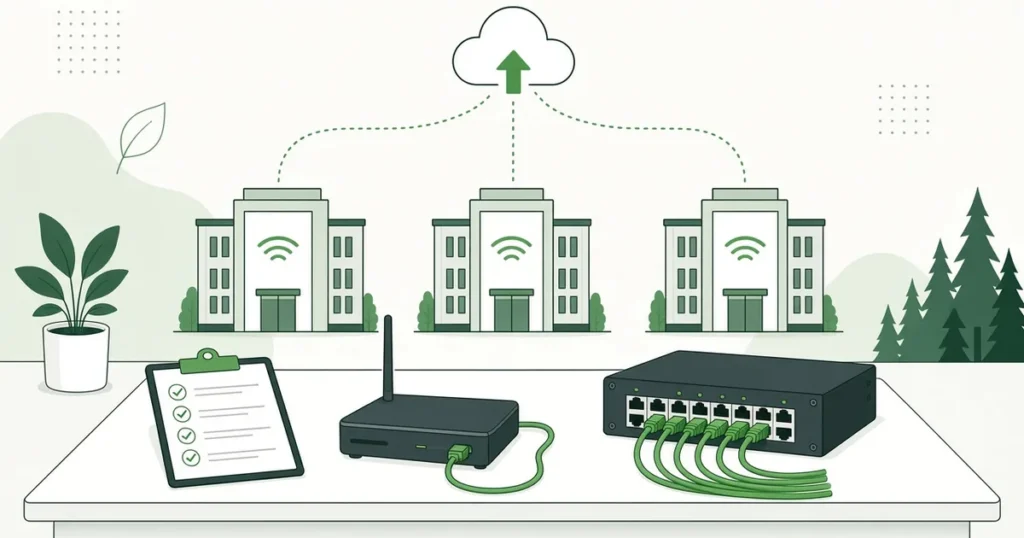
Running two, three or ten locations is a different job than running one. Each site has its own internet connection, its own Wi-Fi, its own network closet and its own set of people calling with questions. When every location was set up at a different time by a different vendor, small problems multiply. Planning IT for multiple locations before the new year lets you fix that on your schedule, not in the middle of an outage.
This checklist is written for multi-site organizations across Dallas-Fort Worth, including senior living communities, property management companies, hotels and growing offices with 25 to 100 workstations spread across several buildings. Work through it one section at a time, write down what you find at each site, and you’ll start 2027 with a plan you can actually follow.
1. Build one list of every site
Start with a simple spreadsheet that has one row per location. For each site, write down:
- The address and the main on-site contact
- The internet provider, account number and support phone number
- How many computers, printers, phones and Wi-Fi access points are there
- Where the network closet is and who has the key
- Any special systems, such as nurse call, door access, cameras or point-of-sale
This list is the foundation for everything else. It also shows you, often for the first time, how different your sites really are from each other.
2. Plan for internet failover at every location
If a site loses its internet connection, what happens? For many organizations, the answer is that phones, cloud apps, card payments and email all stop until the provider fixes the line. Internet failover means having a second connection that takes over automatically when the first one goes down.
Common approaches include:
- A second wired provider, ideally one that uses a different type of service or enters the building a different way
- A cellular (LTE or 5G) backup that kicks in when the main line drops
- A firewall or router that can switch over on its own, so nobody has to run to the closet and swap cables
Not every location needs the same level of backup. A busy main office or a 24-hour senior living community likely needs more than a small satellite office. Decide which sites can’t afford to go offline, and start there.
3. Make Wi-Fi consistent across sites
Your staff should be able to walk into any location and connect the same way. Residents, guests and tenants should have their own separate network that keeps them away from your business systems.
When planning IT for multiple locations, aim for:
- The same network names and security settings at every site, so devices connect without a phone call to IT
- Separate guest or resident Wi-Fi at each location
- Coverage where people actually work, checked by walking each building, not guessed from a floor plan
- Central management, so one person can see the health of every access point from one screen
If a site has constant dead spots or slowdowns, that pattern is worth writing down before you call anyone. Our post on signs your business needs better network support covers the most common warning signs.
4. Clean up and standardize cabling closets
The network closet is where most multi-site problems hide. One site has a neat rack. Another has a switch sitting on the floor next to the water heater. A third has cables nobody can trace.
At each location, check for:
- Equipment mounted in a rack or on a wall board, not stacked on the floor
- Labeled cables and patch panels that match a written map
- A battery backup (UPS) that still holds a charge
- Reasonable airflow and temperature
- Locked access, with a record of who has a key
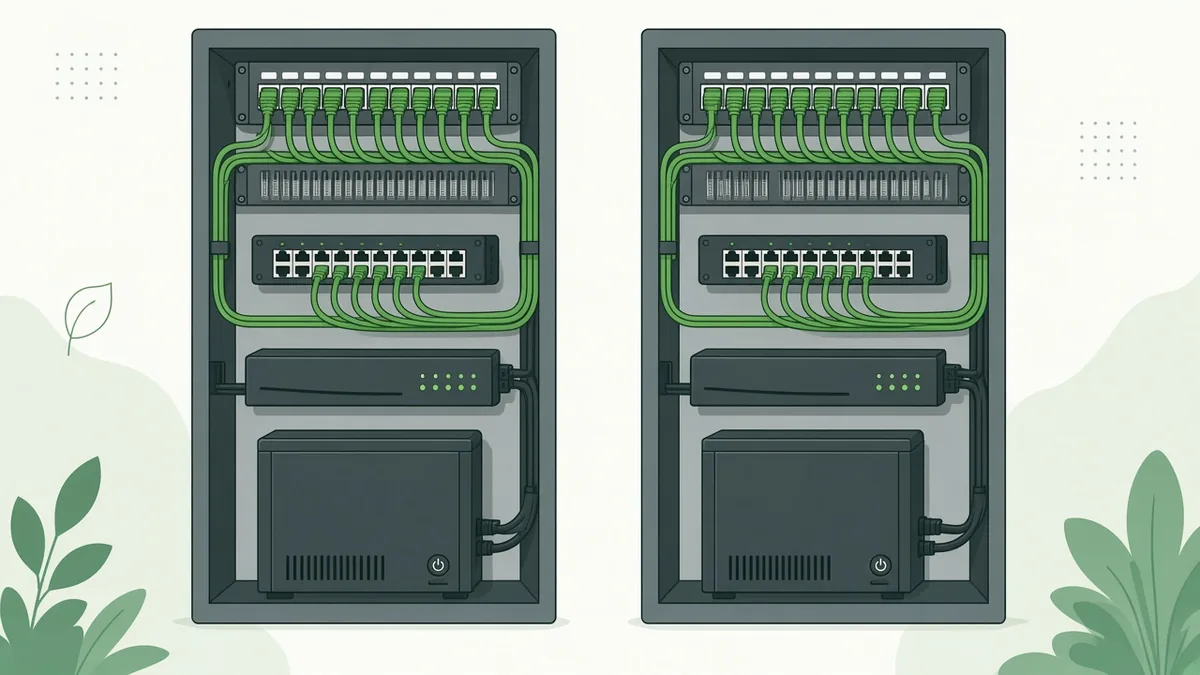
When closets look the same at every site, any technician can walk in and know where things are. Covenant Computing does structured cabling to BICSI standards, so every job is organized, tested and documented. Learn more about our network infrastructure and cabling services.
5. Standardize hardware and setup
Standardization is the quiet secret behind multi-site IT that runs smoothly. When every location uses the same models of firewall, switch and access point, and every computer is set up the same way, problems are easier to spot and faster to fix.
Here’s what to standardize:
- Network equipment. Choose one firewall, switch and Wi-Fi platform for all sites, and replace outliers as they age.
- Computers. Pick a small number of approved models and a standard setup, including security tools and core software.
- Accounts and sign-in. Use one directory, such as Microsoft 365, so staff have one login that works at any site.
- Security settings. Apply the same update schedule, antivirus and multi-factor authentication everywhere. CISA, the federal cybersecurity agency, explains why multi-factor authentication matters in plain English.
- Documentation. Keep one network diagram and one equipment list per site, in the same format.
You don’t need to replace everything at once. Set the standard now, then bring each site in line as equipment comes up for replacement.
6. Choose a support plan that covers every location
The last piece of planning IT for multiple locations is deciding who supports it all. Many multi-site organizations end up with a patchwork: one vendor for the internet, another for cabling, a local tech at one site and nobody at another.
When you compare support options, ask:
- Will one team support every location, including onsite visits when needed?
- Is there one number for staff to call, no matter which site they work at?
- Does the plan include monitoring, updates and security, or only break-fix help?
- How are new sites, moves and remodels handled?
- Can the same team support specialized systems like nurse call?
Covenant Computing provides managed IT across DFW, Fort Worth, Houston and Austin from our Arlington office. Our paid support plans include live technicians, and flat-rate plans help keep monthly costs predictable. 24/7 support is available. Support hours and response times vary by service plan. For a closer look at what shapes the cost of a plan, see our guide to the factors behind managed IT cost.
Multi-location IT FAQs
What is internet failover?
Internet failover is a backup internet connection that takes over automatically when your main connection goes down. It’s often a second wired provider or a cellular connection, managed by a firewall that switches between them on its own.
Should every location have the same network equipment?
Ideally, yes. Using the same firewall, switch and Wi-Fi models at every site makes troubleshooting faster, simplifies training and makes it easier to manage everything from one place. You can move toward that standard gradually as older equipment is replaced.
How do we manage Wi-Fi across several buildings?
Use a centrally managed Wi-Fi platform, keep the same network names and security settings at every site, and separate guest or resident Wi-Fi from staff systems. Walk each building to confirm coverage where people actually work.
When should we start planning IT for a new location?
As early as possible, ideally before construction or lease build-out begins. Internet service, cabling and closet space are much easier and less disruptive to plan before walls close up and move-in dates are set.
What happens during a free IT consultation?
It’s a no-cost, no-obligation conversation with our team. You tell us about your locations, your setup and your plans for 2027, and we answer your questions and talk through your options in plain English. It’s a planning conversation, not a troubleshooting or support session.
Start 2027 with a clear plan for IT for multiple locations
You don’t have to fix every site at once. Build your site list, decide where failover matters most, set your standards and choose one team to support it all. A steady plan for IT for multiple locations means fewer surprises and more time to focus on the people you serve.
Have questions about your network, nurse call or IT? Talk with our team at no cost and no obligation. Call 469-373-4393 or request your free IT consultation.